
YOU ARE ENTERING THE DANGER ZONE ☠️
As the Community Manager from a receiver, you are able to close your Community at any time. When you decide to close your Community, all subscriptions within it will be cancelled. Be aware that the members of your Community who are paying a membership fee will lose all the information gathered as well: so closing or archiving your Community has major implications for everyone involved!
There are two ways you can close or archive your Community: either directly (level 1) or indirectly (level 2).
Level 1: Direct (Community)
When you close your Community directly, anything else linked to your company account on the platform will not be affected. The consequences are:
- Your Community will be closed immediately.
- All subscriptions in your Community will be cancelled.
Step 1.1: Go to 'Community Settings'
On your Community landing page, click on the three dot icon in the upper right corner and select 'Community Settings' from the drop-down menu.

Step 1.2: Close your Community
Scroll all the way down in your Community settings until you reach the section 'Danger Zone'. You can choose to either close or archive this Community.

Level 2: Indirect (company)
When you decide to cancel you company account subscription, you of course also automatically cancel any created Community linked to it:
- Your company account will be closed immediately.
- All your created Communities will be closed as well.
Step 2.1: Go to 'Manage Account'
From anywhere on the platform, click on the 'Manage Account' button in the top right corner, next to your profile picture.

Step 2.2: Cancel your subscription
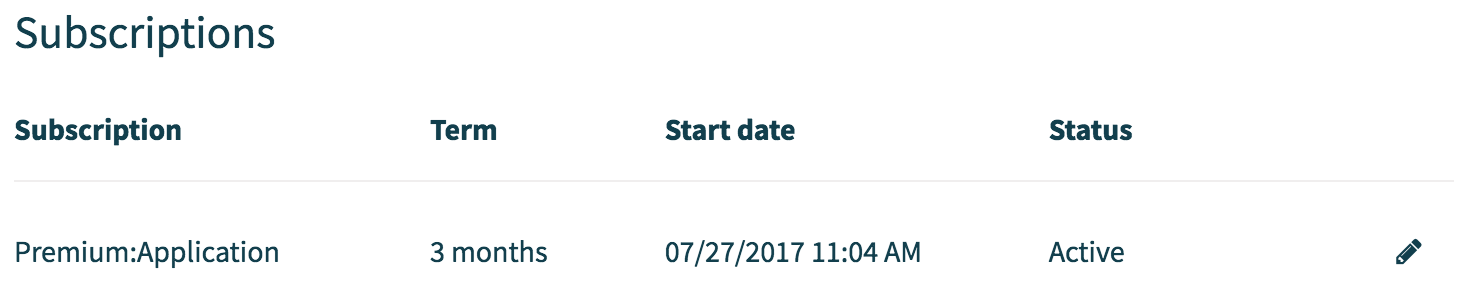
On the right-hand side of your subscription details, you'll find a pencil icon. Click on it.
Step 2.3: Close account
This will bring you on a page with the header 'Change Subscription Plan'.
At the bottom of that page, there's a 'Close Account' tab. Click on that, and you're out. We'll miss you!
Comments
0 comments
Please sign in to leave a comment.