
1. Follow up if carrier takes the initiative to book a slot
The menu option ‘Packages’ opens a screen with an overview of all packages (transport orders) that you have placed.
The packages have 2 states
- Both dots are red: Package waits initiative of carrier to book a slot
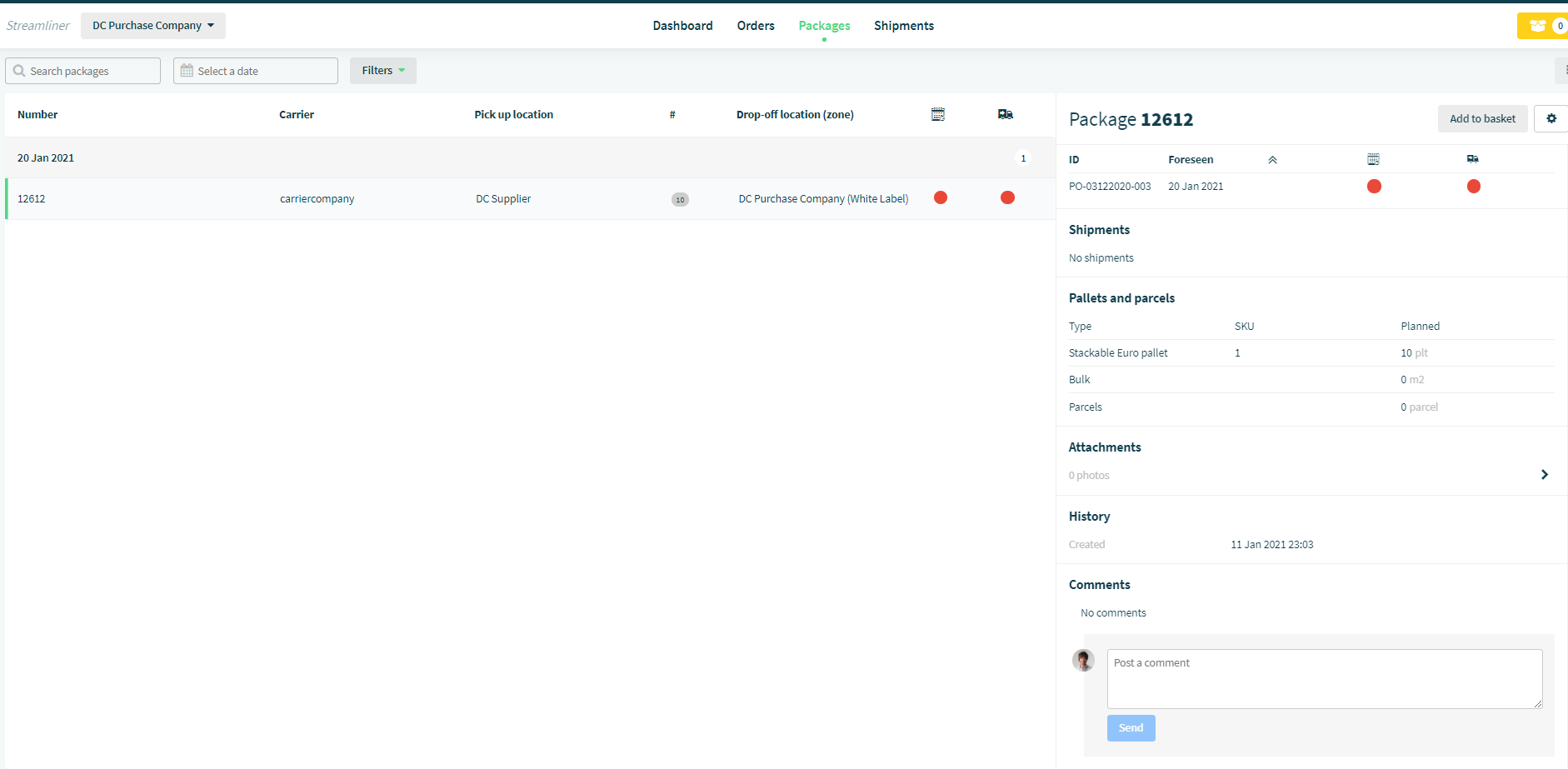
- First dot is green, second red
Your carrier booked a slot to deliver. The first dot becomes green as soon as your carrier booked a shipment.
- Both dots are green
The package is completed when shipment is completed. No action is needed from your site. This is just to follow up. The package will disappear from your list tomorrow. recall when necessary by setting the filter to 'All'
2. Communicate with your carrier and share documents.
Like for orders you can use the communication layer to follow up your carrier. Your carrier will receive an email with your question. This information is not share with your customer, except if you give your consent.
you can also attach any document like CMR or other to this package. These documents are only visible for you and your carrier, except if you give your customer permission to see it.
3. Follow up delivery in real time
You as supplier can follow in real time what's happening with the shipment that your carrier has to deliver.
Just open the shipment linked to the package or go directly to the shipment screen.
for every shipment, you see green rectangles appear in real time when
- Truck arrives at site
- Truck enters the premises
- Truck is docked
- Truck is unloaded
- Truck leaves the premises
This is a very powerful feature enabling you to check on any moment any shipment that the carrier creates in your name and this without any cost.
Enjoy and improve you collaboration with your customer.
Comments
0 comments
Please sign in to leave a comment.