
1. General.
Streamliner is a B2B platform, bringing companies together to collaborate on the inbound supply chain. For more info see our website www.streamliner.cloud or consult our knowledge base on support.streamliner.cloud
A user in your company will be invited to onboard your company in a streamliner community as carrier.
This miniguide describes the following steps
- Follow up the booked deliveries/shipments
- Consult state, ETA and give your own remarks
- Manage notifications
- Centralize communications for any question
This miniguide is one of the 3 mini guides that are available to support you as a carrier on the Streamliner platform. Read more in the following mini guides
- Onboard as a carrier
- Book an appointment to deliver goods
- Collaborate on the reception of goods as a carrier. (this one)
Prerequisites
- Be invited by your customer to participate in the inbound community
2. Overview of the Shipments.
All appointments that are made by you or in your name by your customer or 3PL are managed in the ‘Shipments’ screen.
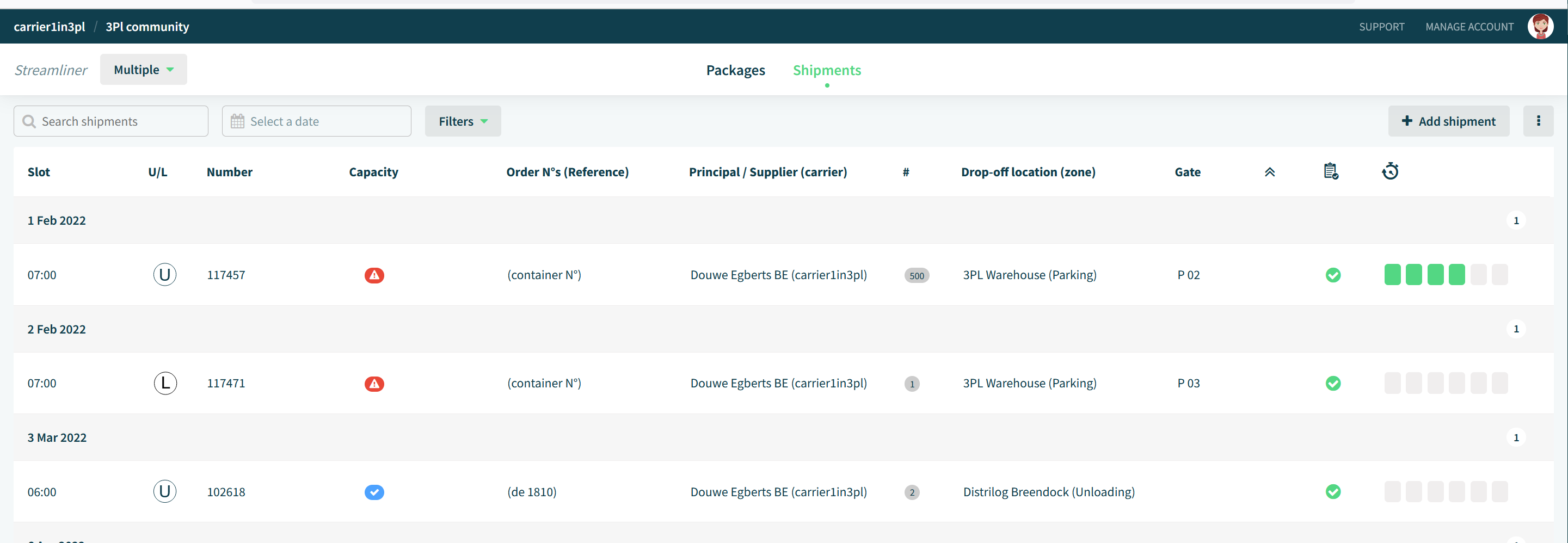
2.1. Information found on this screen.
By default all ‘Open’ Shipments are shown on this screen. The open shipments are those shipments that are not completed, but had to be completed before today and all shipments of today and further in future.
You can set other filters by using ‘Filters’. See more on Support.streamliner.cloud
All shipments are grouped by delivery date and ranked by received time slot.
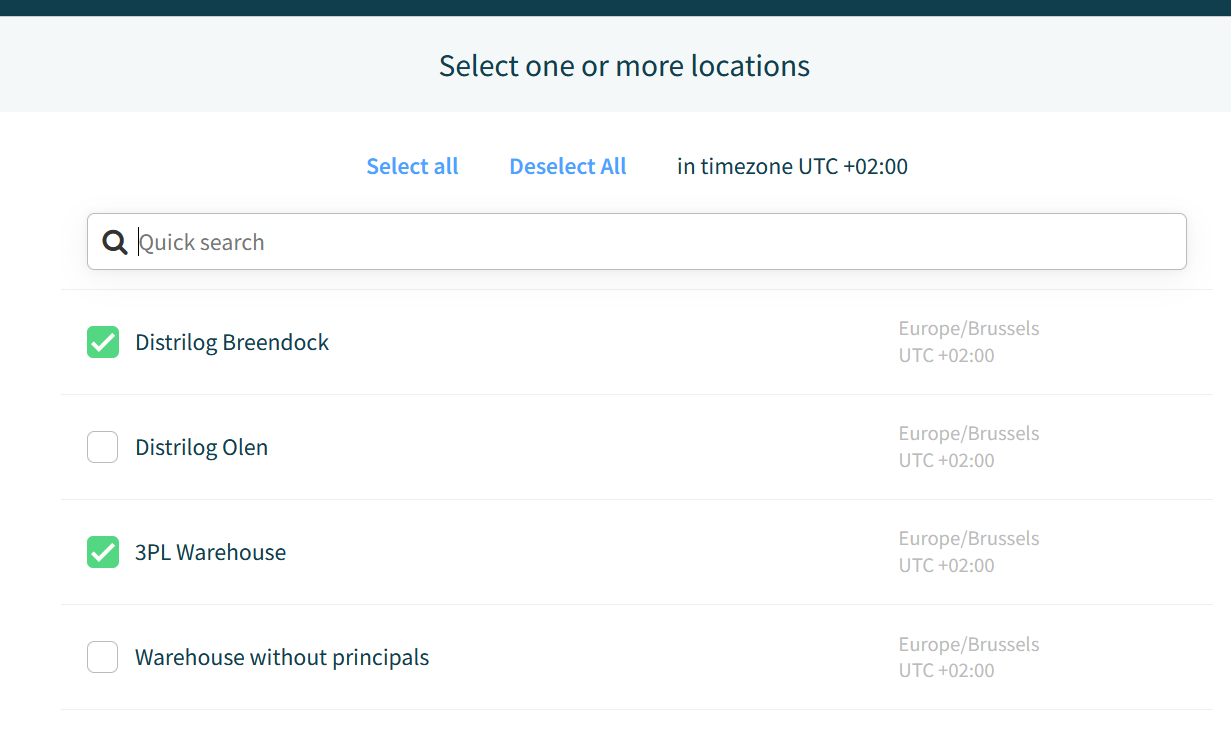
In the top left, you can select all drop-off locations for which shipments are created. Streamliner selects by default all locations where you have open shipments. Also drop-off locations that have been used in the past, are visible, even if you have no open shipments.
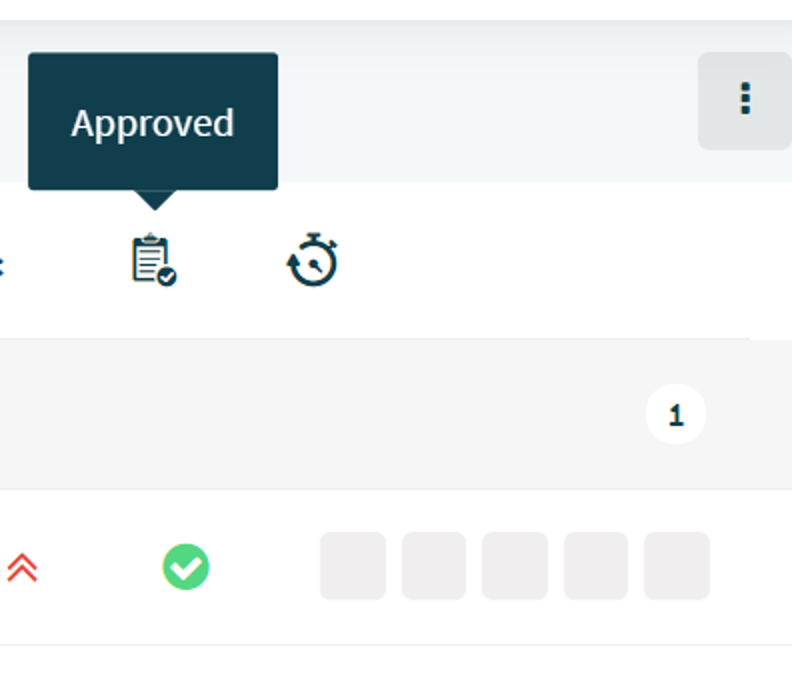
The first gray or green box indicates if shipment is approved. By default a shipment is approved if the booking rules are respected. If not, the 3PL has to approve the shipment.
Five or 6 rectangles indicate the state of the shipment.
The state goes from Arrived, to In, Docked, Unloaded, out to Gate Free. The state ‘Gate Free’ See further.
These states are managed by the 3PL.
2.2. ETA information.
Please contact Streamliner if ETA information about the trucks that are delivering the goods can improve the visibility. Streamliner is able to show the ETA information in cooperation with our partners.
2.3. Detailed information of a shipment
If you click on a shipment, the detail panel will open and will show all detailed relevant information about the shipment.
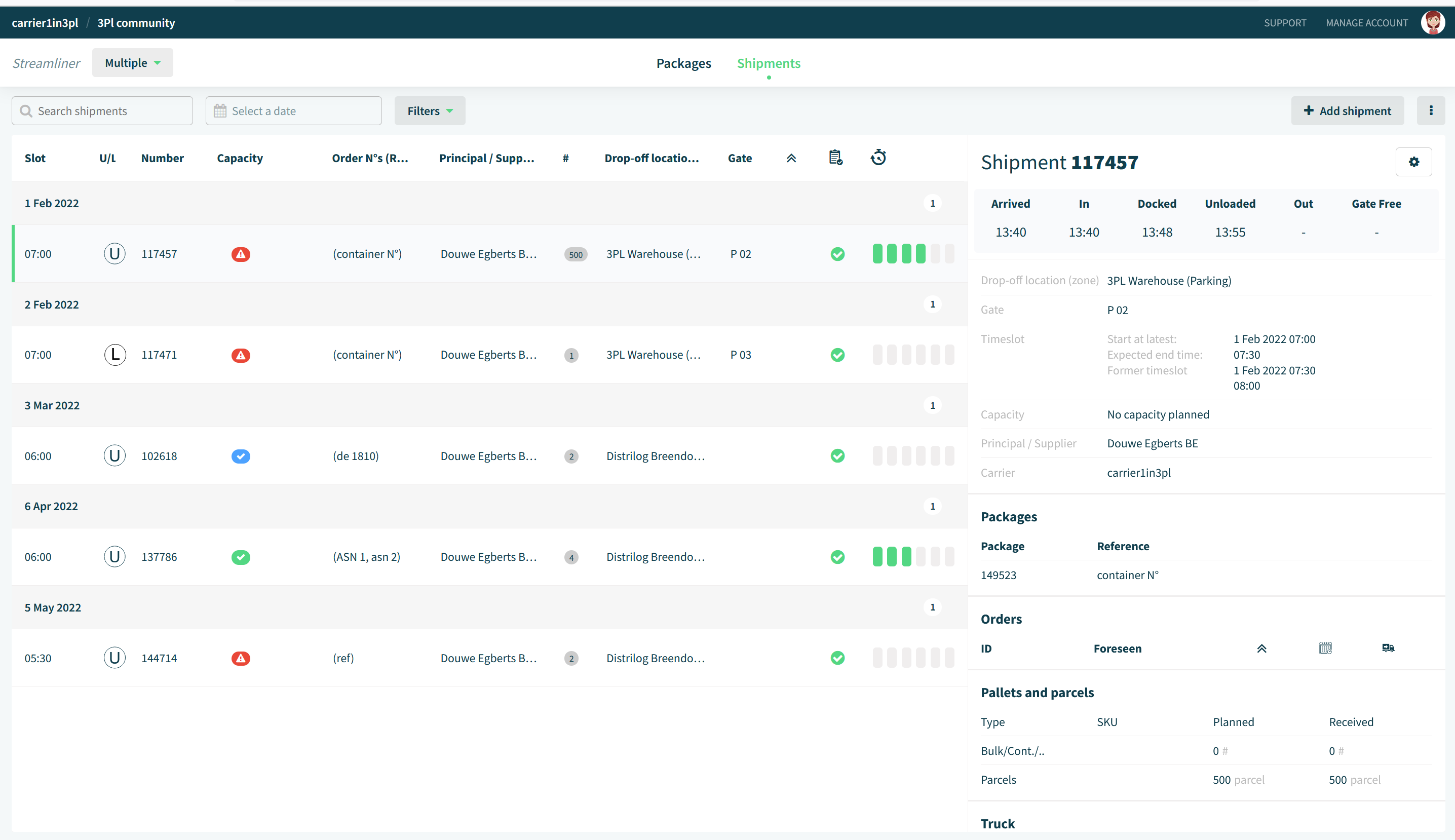
Including but not limited to
- Packaging units
- Truck information
- Linked issues
- Attached documents
- Comments
3. Collaborate on shipments
3.1. Use comments.
At any moment, you can place comments and react to comments. All communication is centralized, giving you the opportunity to participate in the discussion if needed. This is shared data so, 3PL, carrier and principal can see the same data. This is collaboration without the need to know upfront the email addresses of these persons.
This works bi-directional.
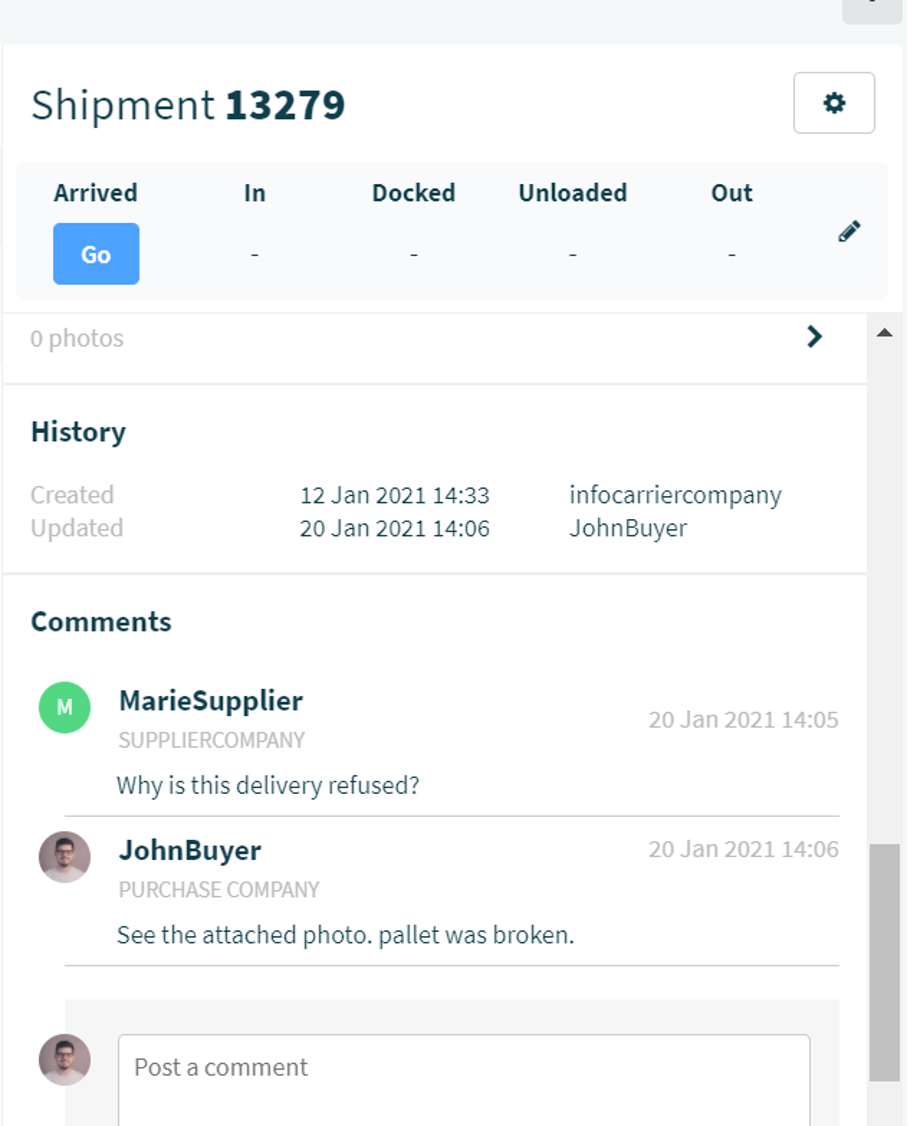
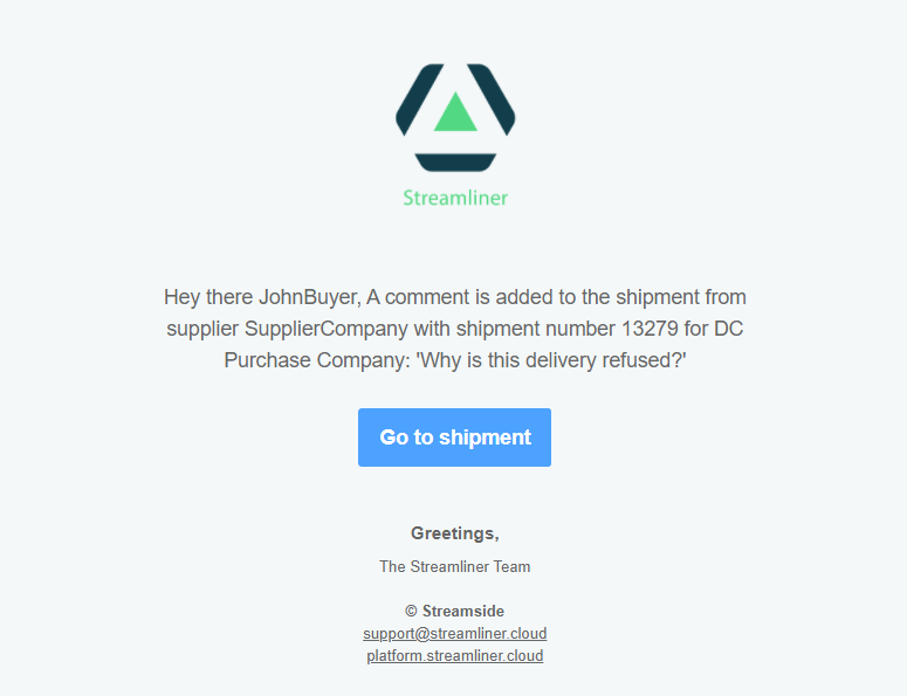
Any comment that is added by 3PL, principal or carrier creates an automated email to you , we call it a notification, to all users who want to receive the comment notifications.
An example of such a notification just below.
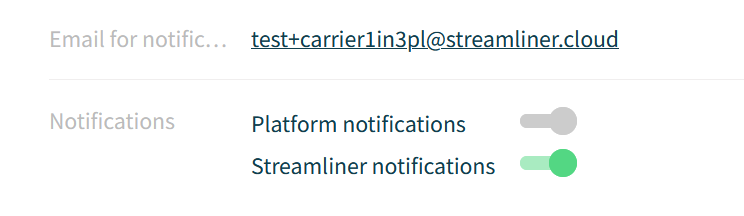
See : manage users to disable or enable these notifications.
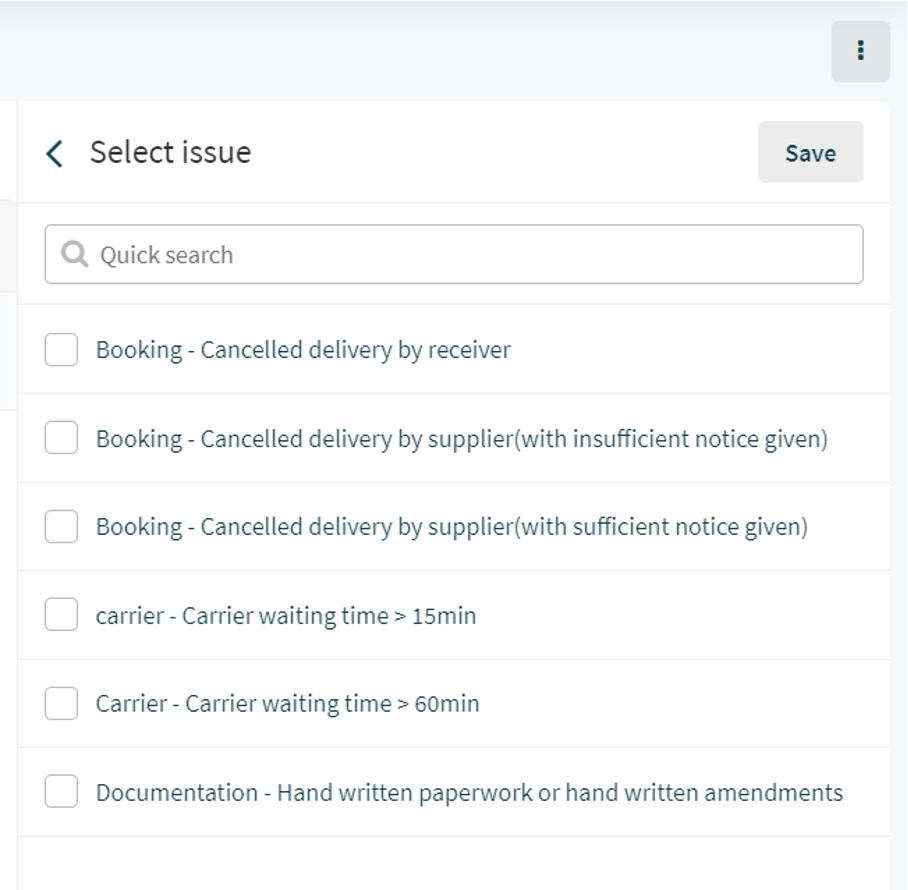
3.2. Use issues
Add any moment, you can add ‘issues’ to a shipment. 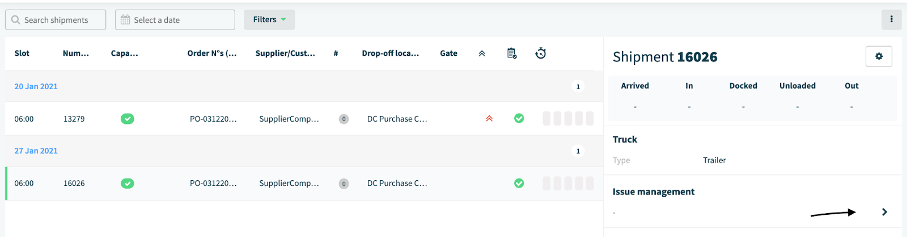
An issue is a kind of structured information, part of the KPIs that you agreed with your 3PL to follow up your performance. You can consult the evaluation that your 3PL is giving you, but you can also add your own issues. The list of issues that you can add, is maintained by your 3PL.
Please consult the knowledge base for more in depth articles. Good luck and happy visibility with Streamliner.
Comments
0 comments
Please sign in to leave a comment.