
In the article below we will explain how to clear your cache from your browser. We will also give you the direct link from google for the browsers firefox, google chrome and edge.
Google Chrome: support google: clear cache
Safari: microsoft edge: clear cache
Firefox: firefox: clear cache
When is this needed?
If you receive messages like "oops something is wrong", "Please contact support" or you just see empty blank pages, please try to clear your cache first, this could be the solution. Your browser can cache screens from previous days to ensure that the page is loaded faster, but this does not work when the screen layout is changed.
How can you clear your cache?
The example that is shown below is done with Google Chrome, but the behavoir is more or less the identical in other browsers like Firefox or Edge.
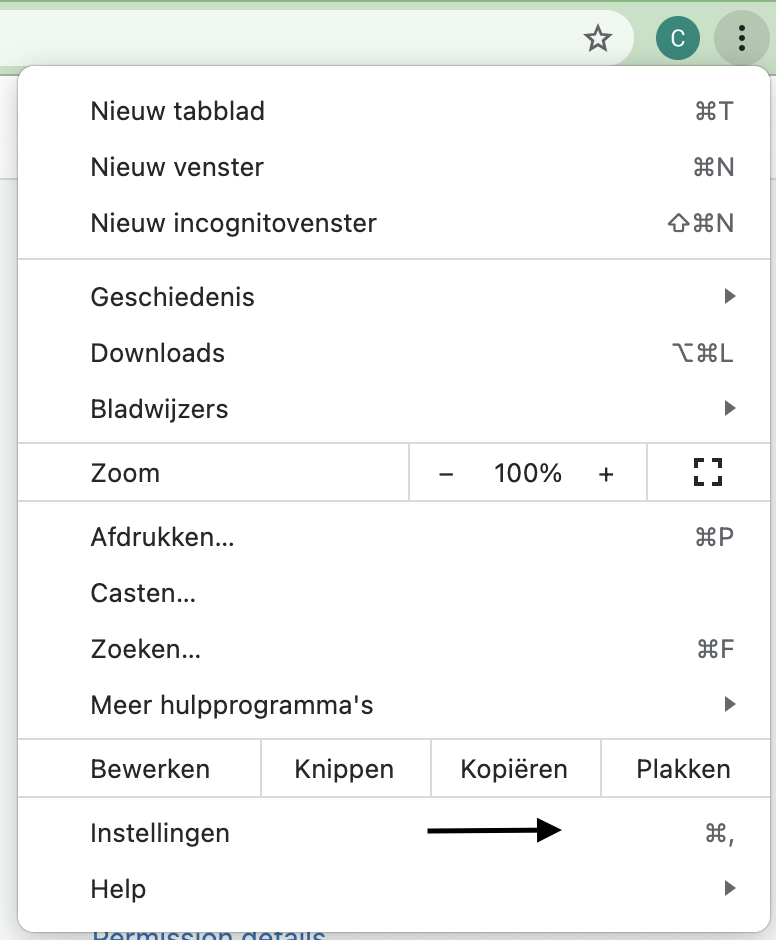
Step 1: Please open your browser click on the configuration menu on the right and click on settings.
Step 2: in settings choose Privacy and Security.
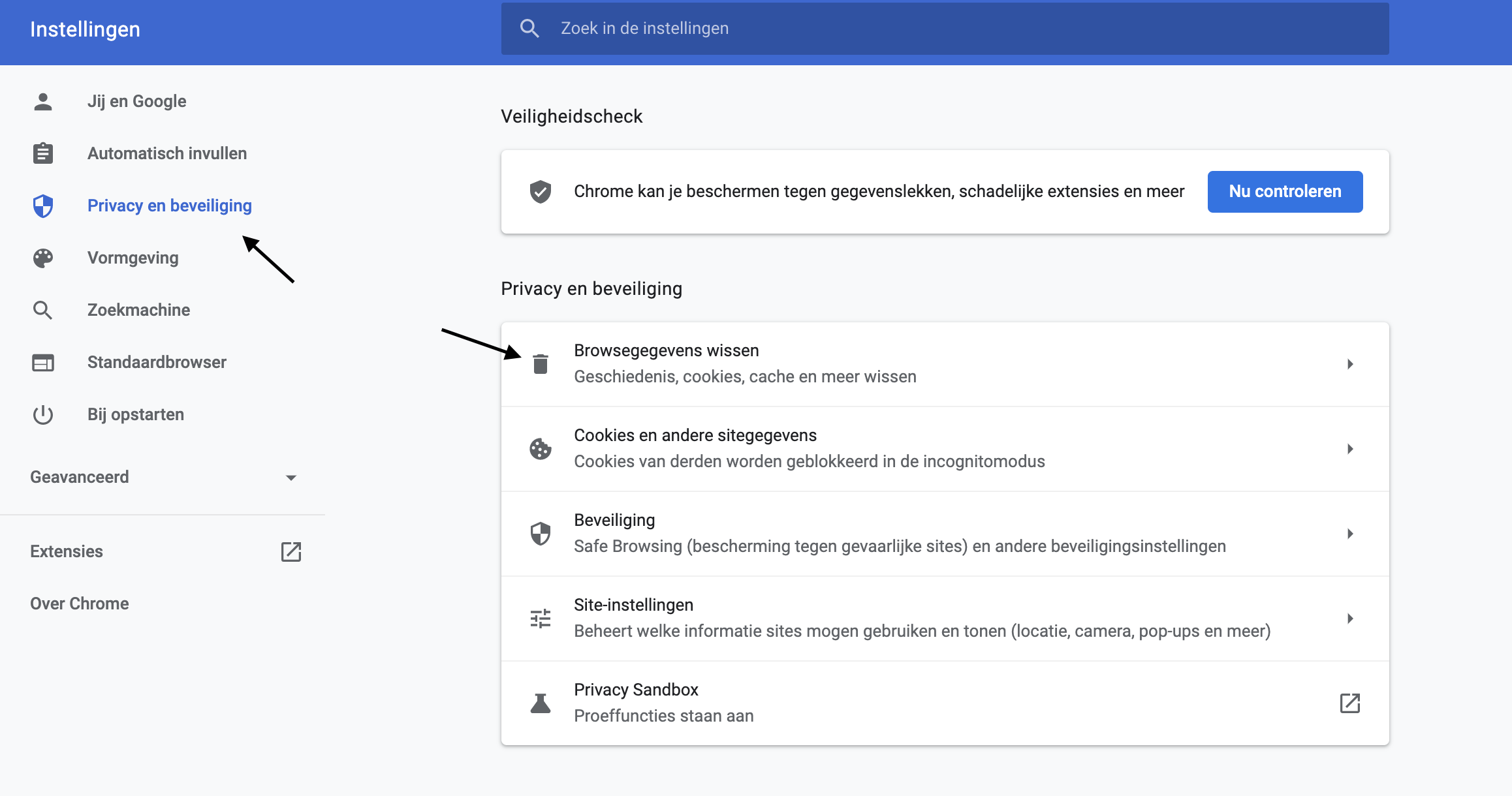
Step 3: click on clear browsing data.

Please make sure you set the correct period to "all time".
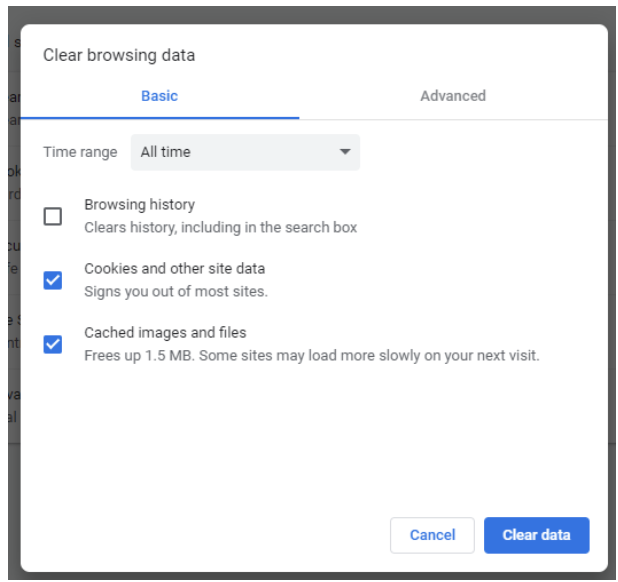
Make sure you select "Cookies" and "Cached images and files. They are selected by default. Afterwards you click on clear data.
You can also choose to clear other data, but maybe that disturbs you when you have the habit to store passwords etc in your browser. (What is in anyway an attention point and a risk)
Hope this helps!
Comments
0 comments
Please sign in to leave a comment.